Accessory Replacement – App User Guide
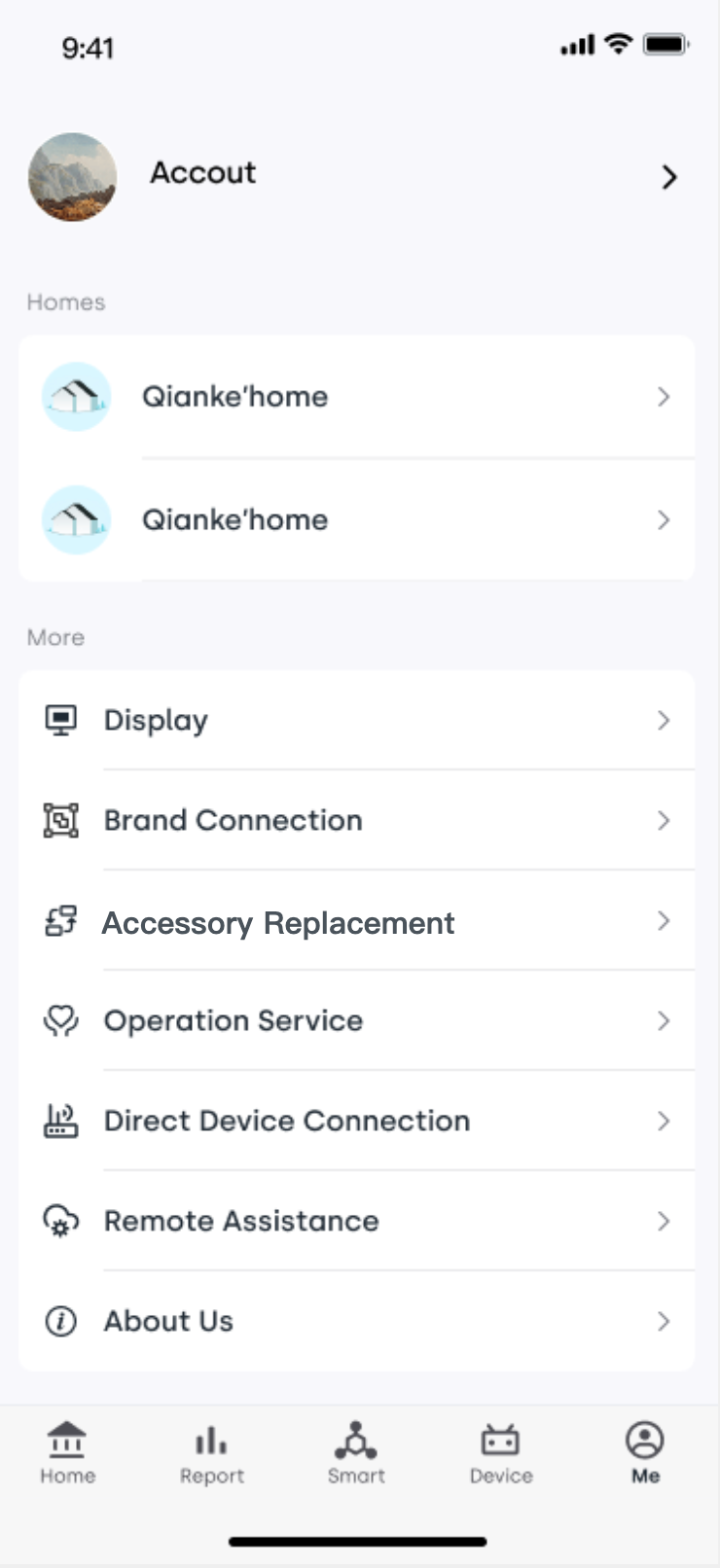
1. Access the Feature
- Open the app and go to Me. Tap Accessory Replacement to enter the module
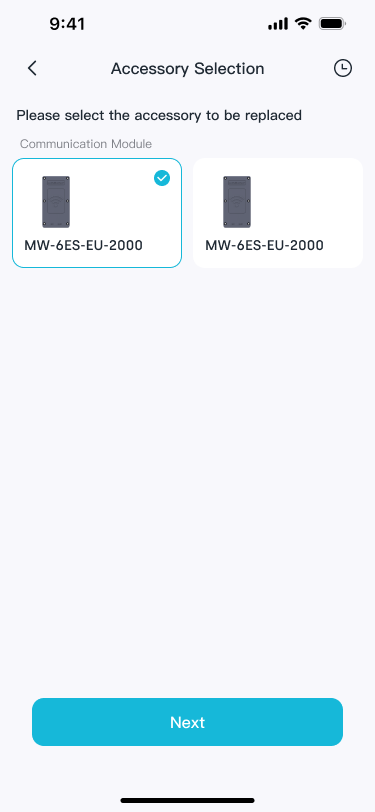
- Select the type of accessory supported by the system
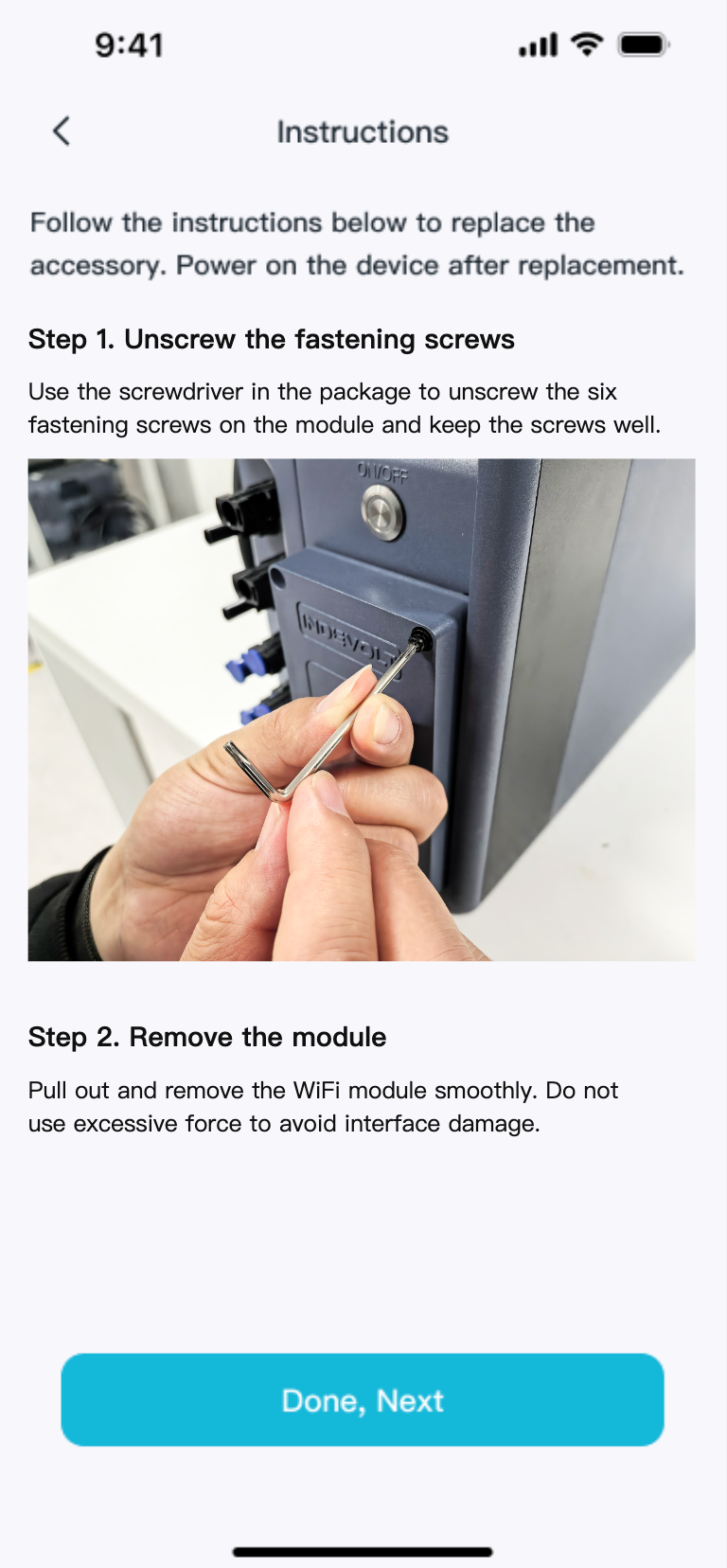
- Read the instructions and follow them to complete the accessory replacement process
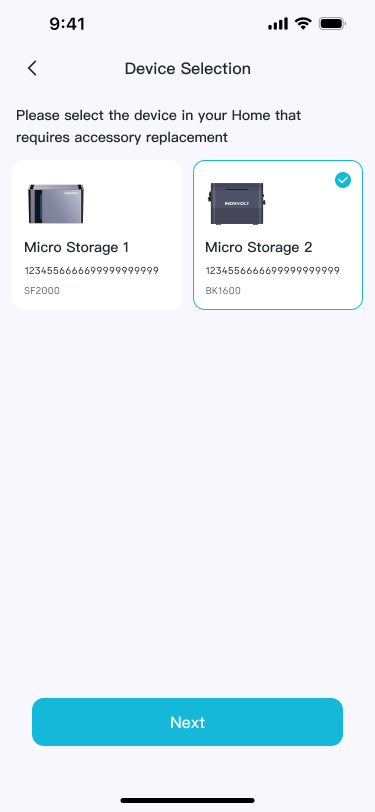
2. Select Device
From the list, select the device that requires accessory replacement (The device must already be added to the current Home)
3. Perform Replacement
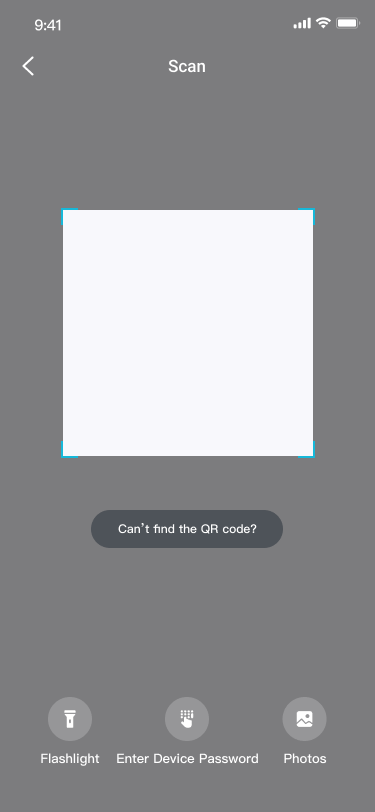
- Scan the QR code on the new accessory
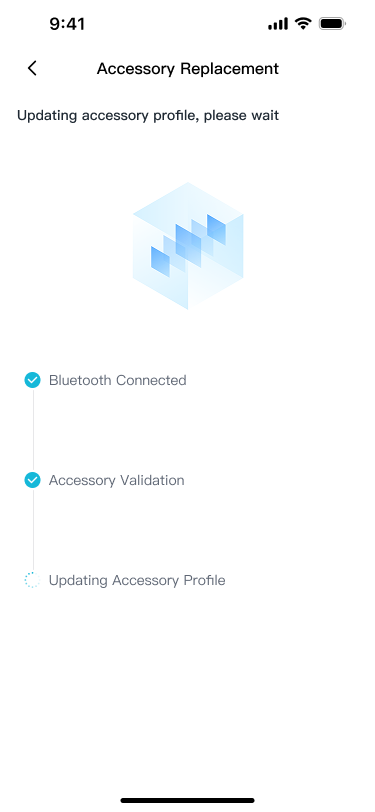
- The system will automatically update the accessory profile
- When “Accessory Replacement Completed” is displayed, the process is successful
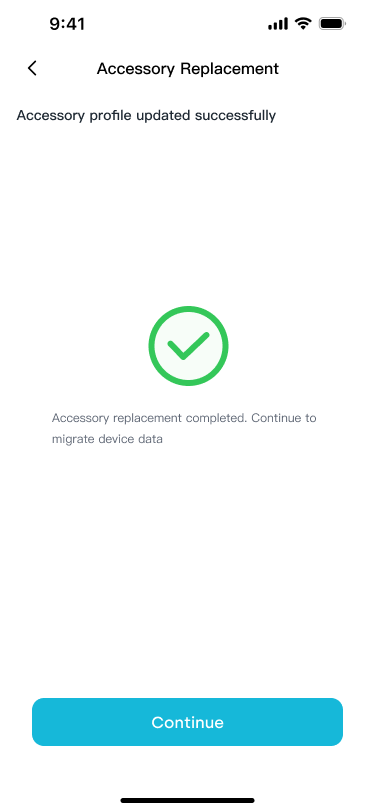
4. Configuration & Data Migration (Optional)
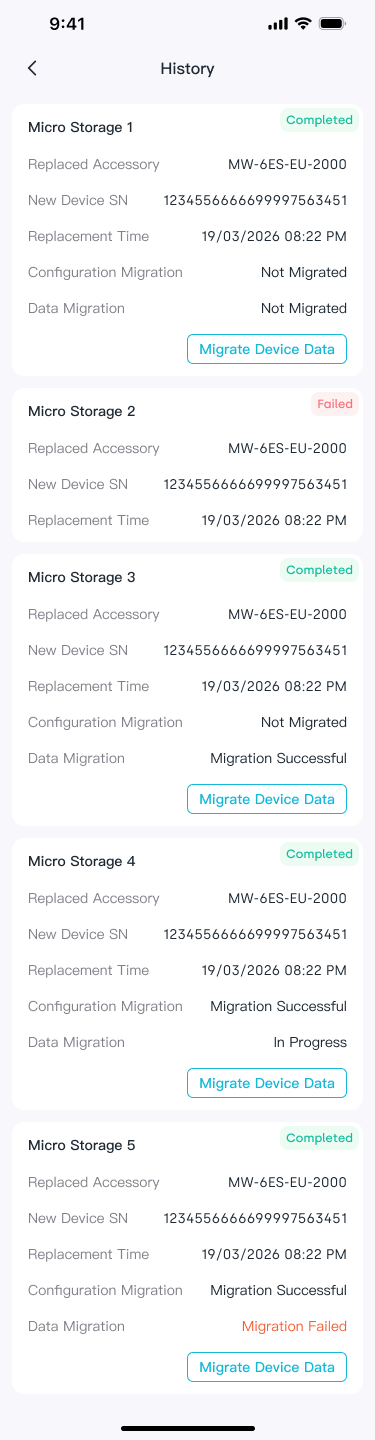
- The following steps are optional and can be performed later in Migration History
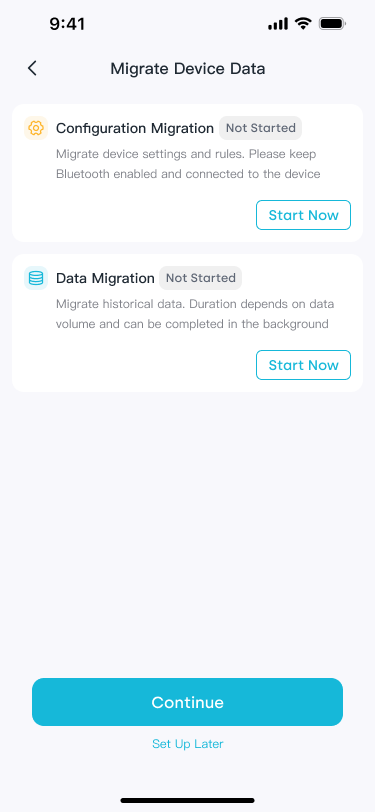
- 【Configuration Migration】
- Use Configuration Migration to sync device settings, including: Parallel settings, Load source, Associated devices
- This step requires a Bluetooth connection
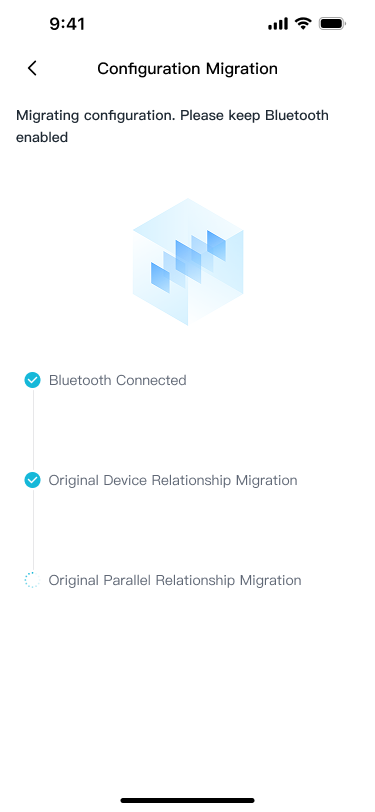
- After configuration migration, you can:
- Continue with data migration
- Or skip and perform it later in Migration History
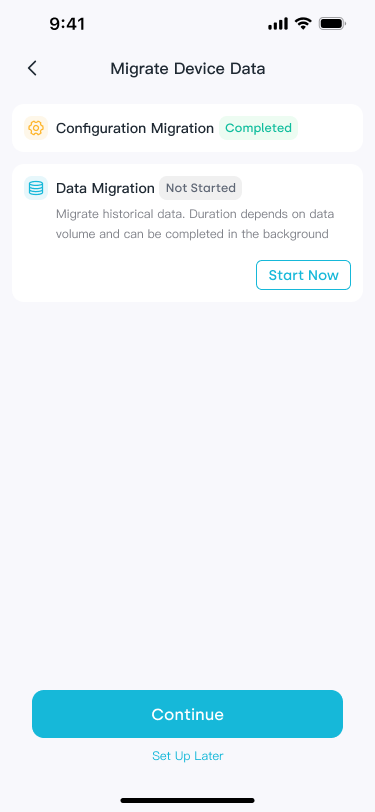
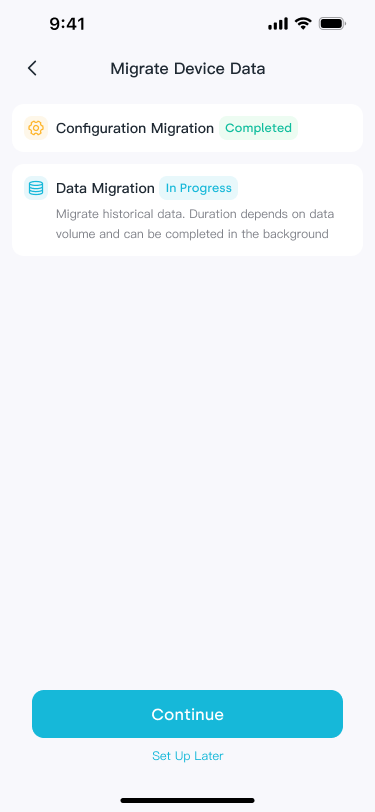
- 【Data Migration】
- Data migration is automatically performed in the cloud
- You do not need to stay on the current page
- Progress and status can be viewed in Migration History
5. Special Notes
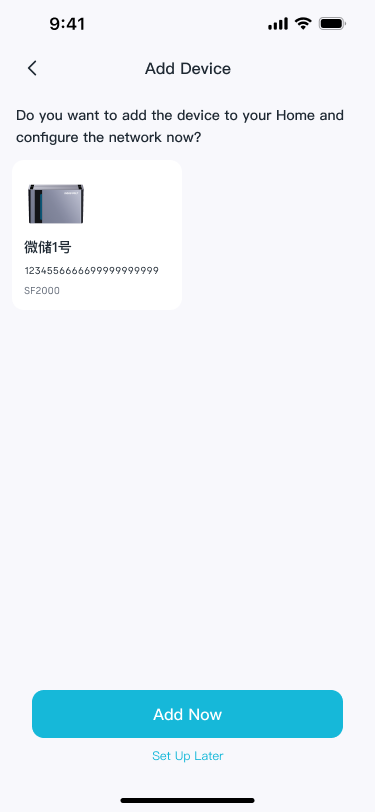
If the device has not been added to a Home:
- You can follow the on-screen instructions to add it
- Or skip and add it later manually
6. View Migration Records
- All configuration migration and data migration records
- Current migration status
👉 These can be viewed in Migration History within the app