Add Devices
When you log in for the first time, the app will automatically create a default home named My Home, which is used to manage all your devices.
Energy Ease currently supports the following brands:
- SOLARMAN
- INDEVOLT
- IZYPOWER
- Afore
- Deye
- Inhenergy
- INVT
- Kstar
- Megarevo
- Pylon Tech
- Royel
- Shelly
- Sofar
- Solis
- TSUN
Step 1: Tap “Add Device”
Tap the Add Device button, or tap the + icon in the top right > Add Device.
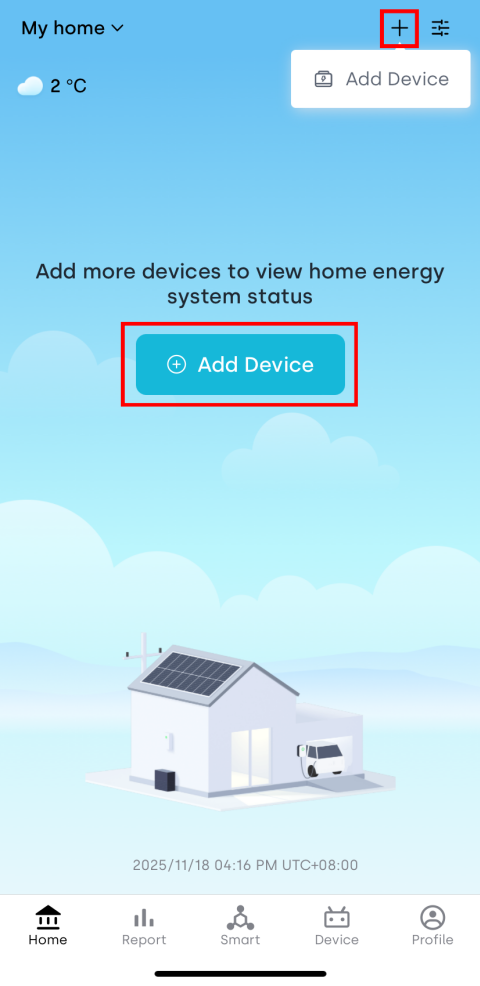
Step 2: Select Your Device
- Turn on your phone’s Bluetooth so the app can connect to the device. If Bluetooth is off, the app will remind you to enable it.
- Find the QR code and serial number (SN) on your device.
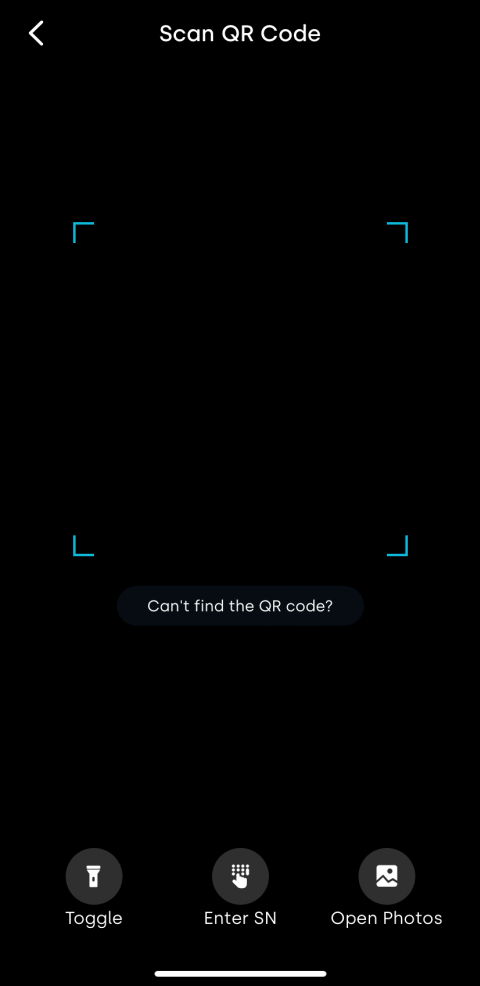
- Method 1: Scan QR Code
- Method 2: Bluetooth Discovery
- Method 3: Add Manually
-
Tap the scan icon in the top right corner of the app.
-
Scan the QR code on your device, or enter the SN manually.
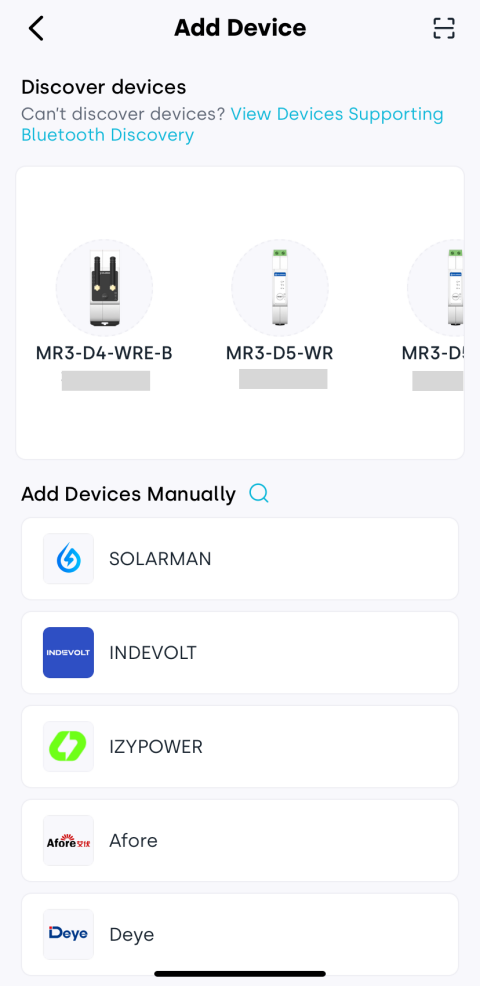
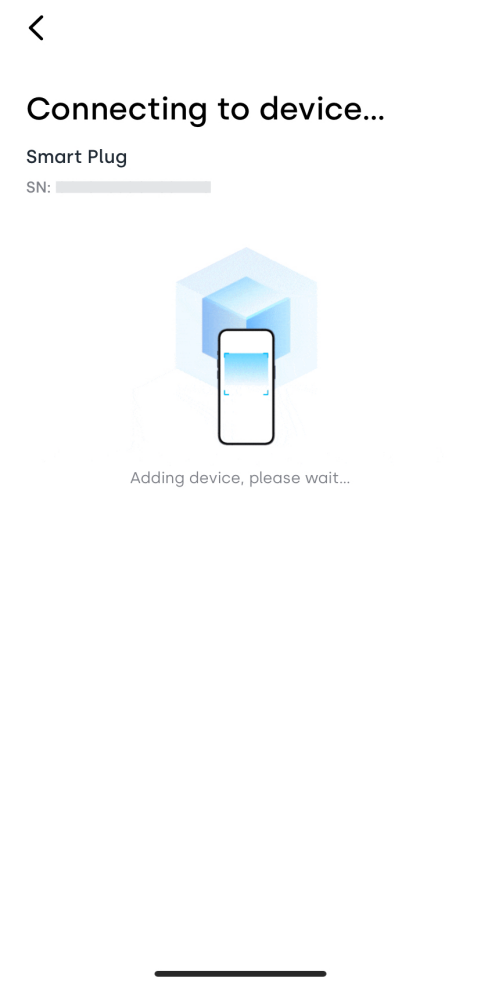
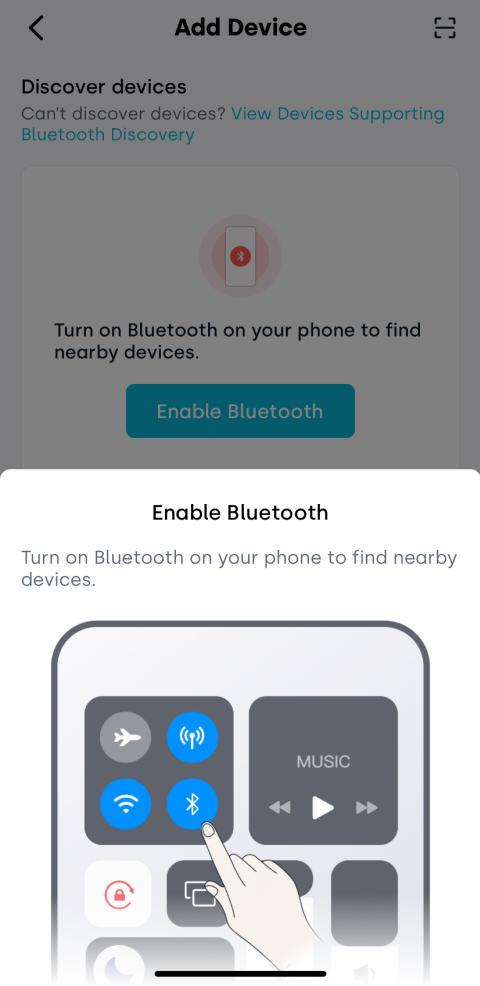
Bluetooth discovery currently supports SOLARMAN, INDEVOLT, and IZYPOWER devices. Tap View Devices Supporting Bluetooth Discovery in the app for more details.
-
Make sure Bluetooth is turned on. If it’s off, the app will prompt you to enable it.
-
The app will automatically scan and list nearby Bluetooth devices. Select your device based on the product name and SN.
-
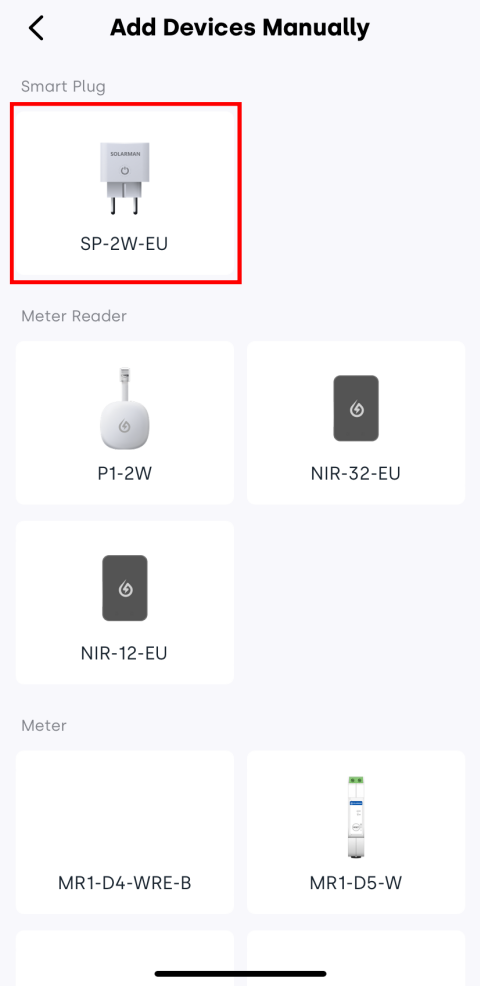
Select the device brand.
-
Select the specific model under that brand.
-
Scan the QR code on your device or enter the SN manually.
Step 3: Configure the Network
-
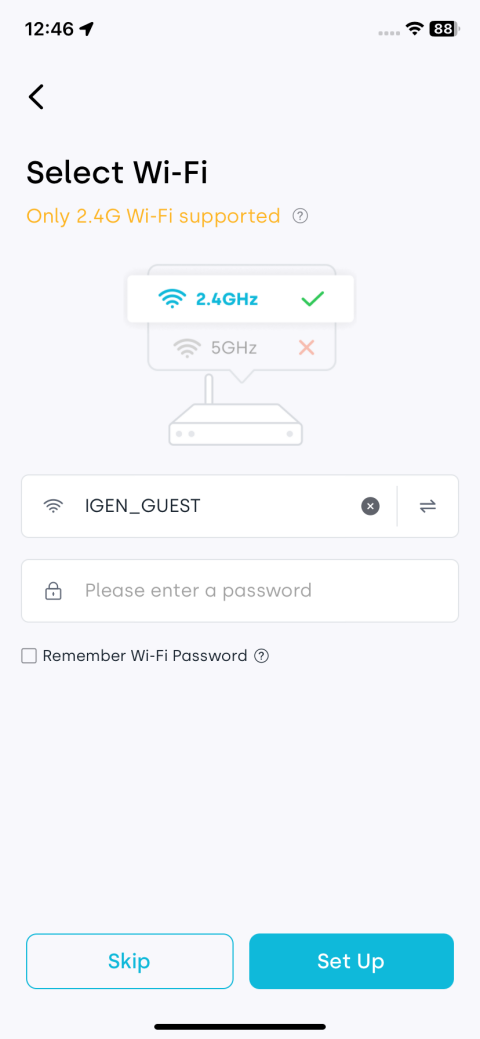
Make sure your phone is connected to your home Wi-Fi, and that the displayed network matches the one you want to use. Enter the Wi-Fi password.
-
If your phone is connected to Wi-Fi but the system cannot detect it, you can manually enter the SSID and password.
-
After confirming everything is correct, tap Set Up.
-
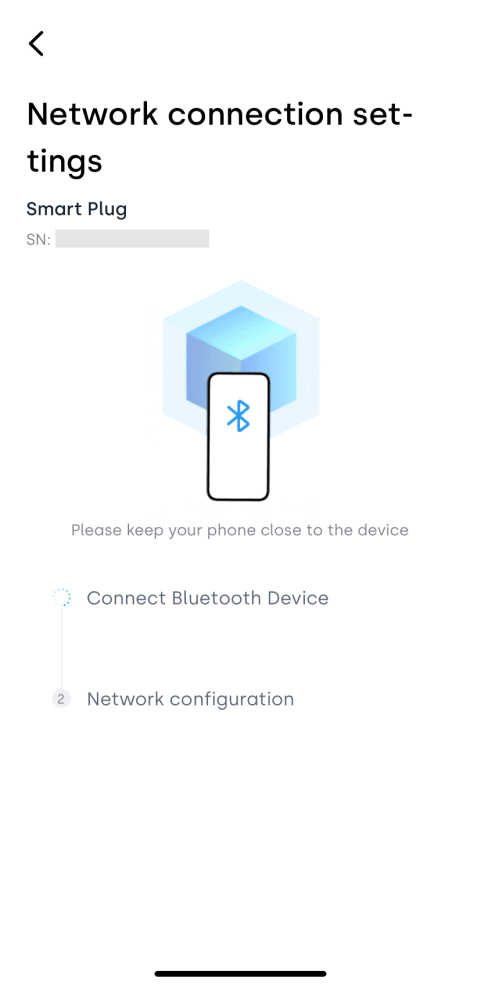
Device is added successfully.
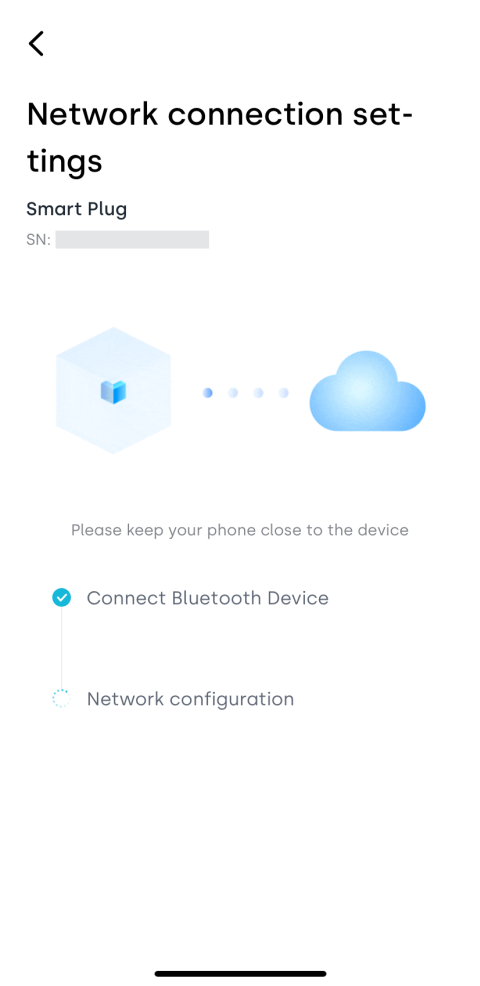
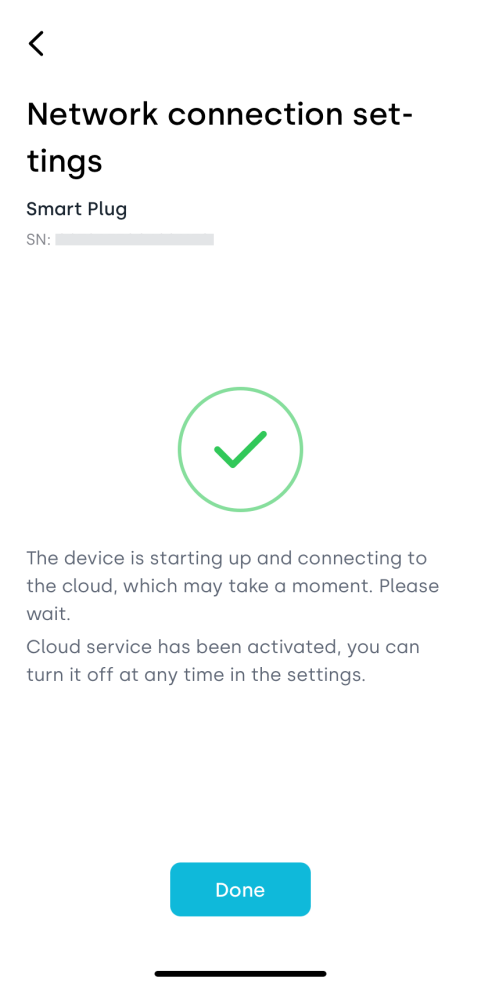
-
(Optional) You can add linked devices following the same steps. If you want to do this later, tap the < back button in the top left to exit.
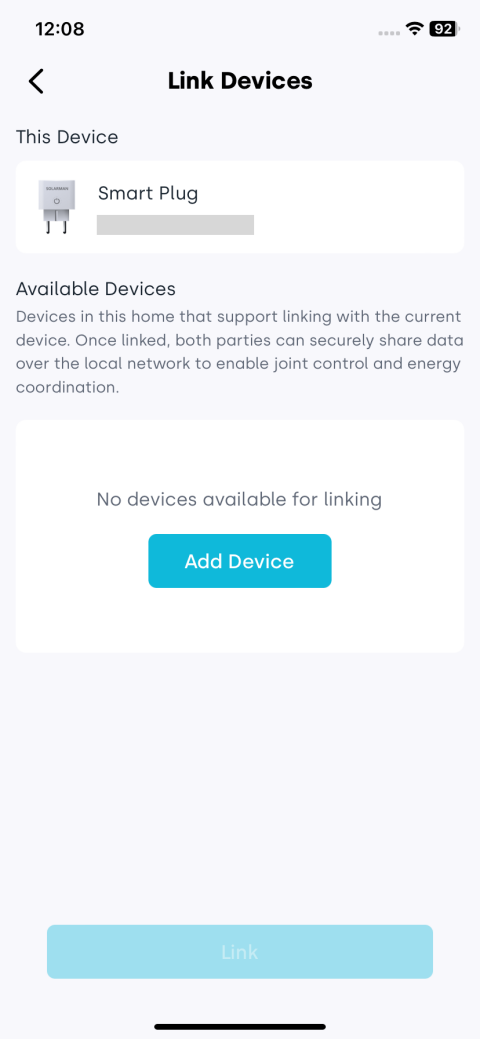
- Please use a 2.4G Wi-Fi network during setup. 5G networks are not supported.
- After adding a device, it may take a few minutes before data appears in the app.
If the setup fails, please check the following and try again:
- Make sure Wi-Fi and Bluetooth are enabled on your phone.
- Ensure your home Wi-Fi has internet access.
- Check that your router has not enabled a blacklist/whitelist.
- Try reducing the distance between your phone and the device.
- Try another Wi-Fi network.
- Remove special characters such as ( , ; ‘ ’ = “ ” ` ) from the Wi-Fi name.
Next Steps
After adding your device, you can: