How to get SolarEdge API Key and Site ID
There are three options to get SolarEdge API Key and Site ID:
- Option 1: Get them yourself by logging in to your SolarEdge monitoring account.
- Option 2: Contact your installer by email and ask them to grant you admin access or provide your API Key and Site ID.
- Option 3: Request the information from SolarEdge chat support.
Option 1: Get them yourself
Step 1
Log in to your SolarEdge monitoring account.
Step 2
If your account has Admin permissions, an Admin link will appear in the top menu. Click it to access the Admin area.
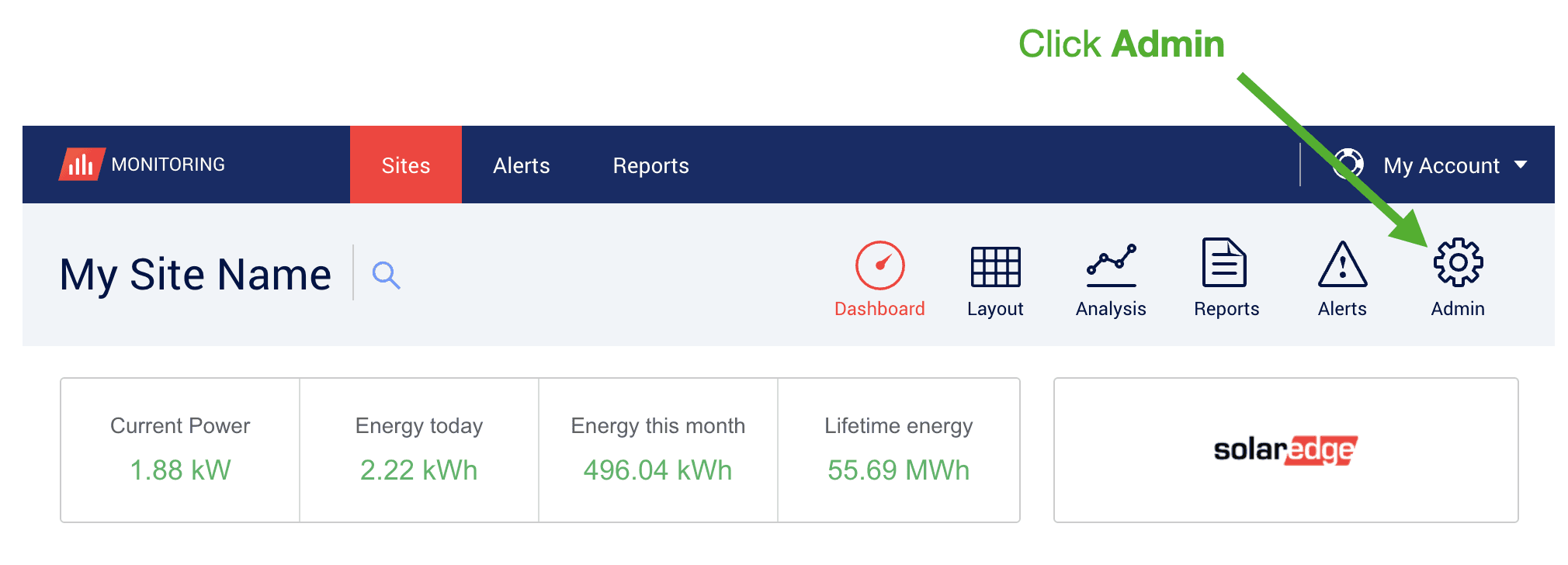
Problem: I don’t see the “Admin” menu item! If this is the case, move on to Option 2.
Solution: You can either:
- (preferred) Request “Admin access” to your account by emailing your installer.
- Ask your installer to retrieve and send you your API Key. You can send them a link to this page in case they don’t know how to.
Step 3
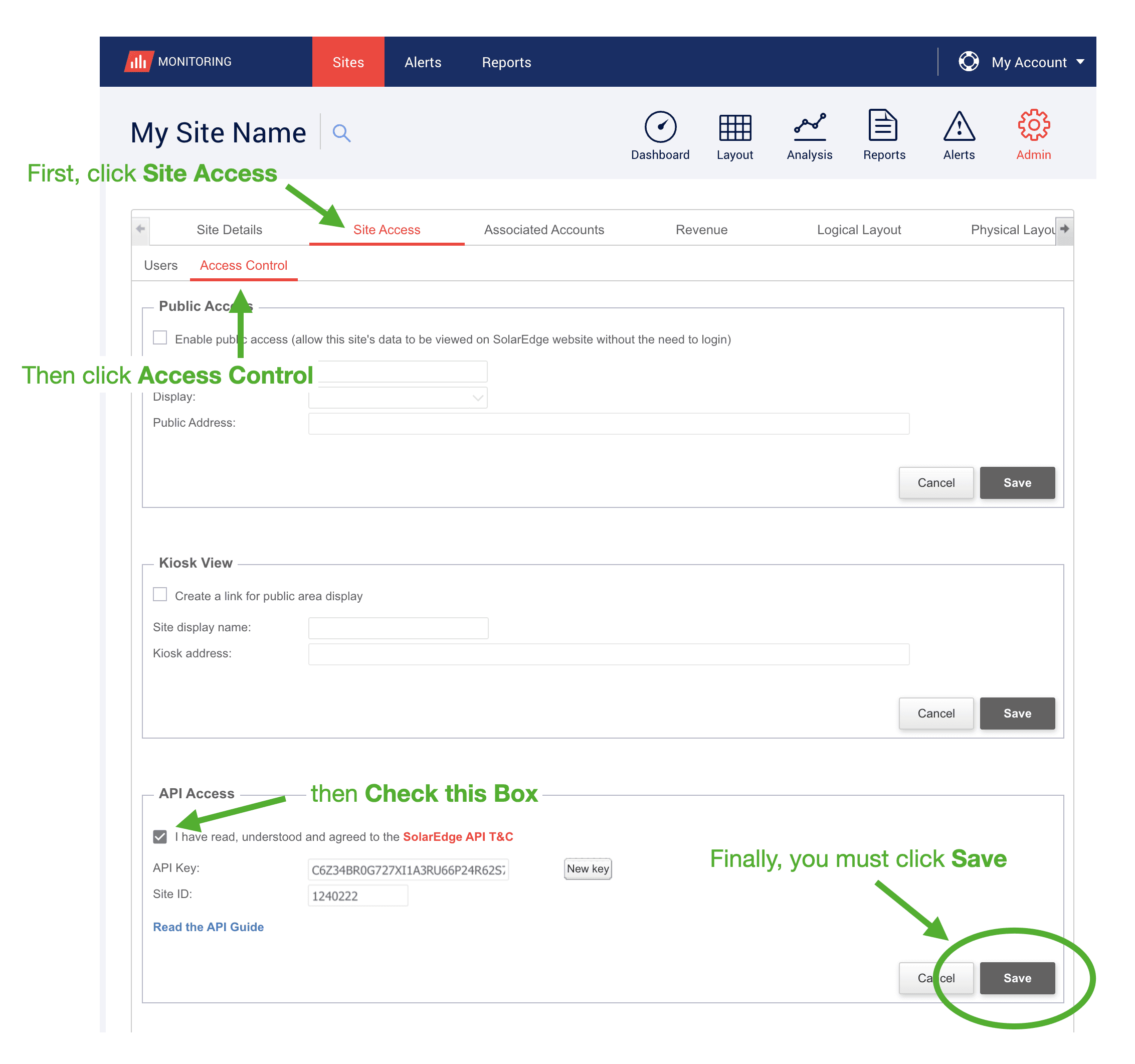
Once you’re in the Admin area, click Site Access, then Access Control. Refer to the screenshot below.
Step 4
- Scroll down to the “API Access” area.
- Check the box "I have read, understood…".
- Click Save.
- After clicking save, click the "Ok" box that pops up.
- To copy the entire API Key, double-click on the long key code. Copy and paste it.
- Copy the Site ID.
Step 5
You’ve done it! You can paste the API Key or Site ID into the required fields in the Energy Ease App.
note
- if you ever click “New key” it may break an existing API connection that is working. If that’s the case, you may need to re-send the new API Key.
- To avoid triggering API rate limits and ensure your device data can be updated normally, please refrain from using the same API across multiple applications.
- After API Key or Site ID is filled and SolarEdge device is online, you might need to wait for 5-10 minutes to see the device SN under SolarEdge device list.